
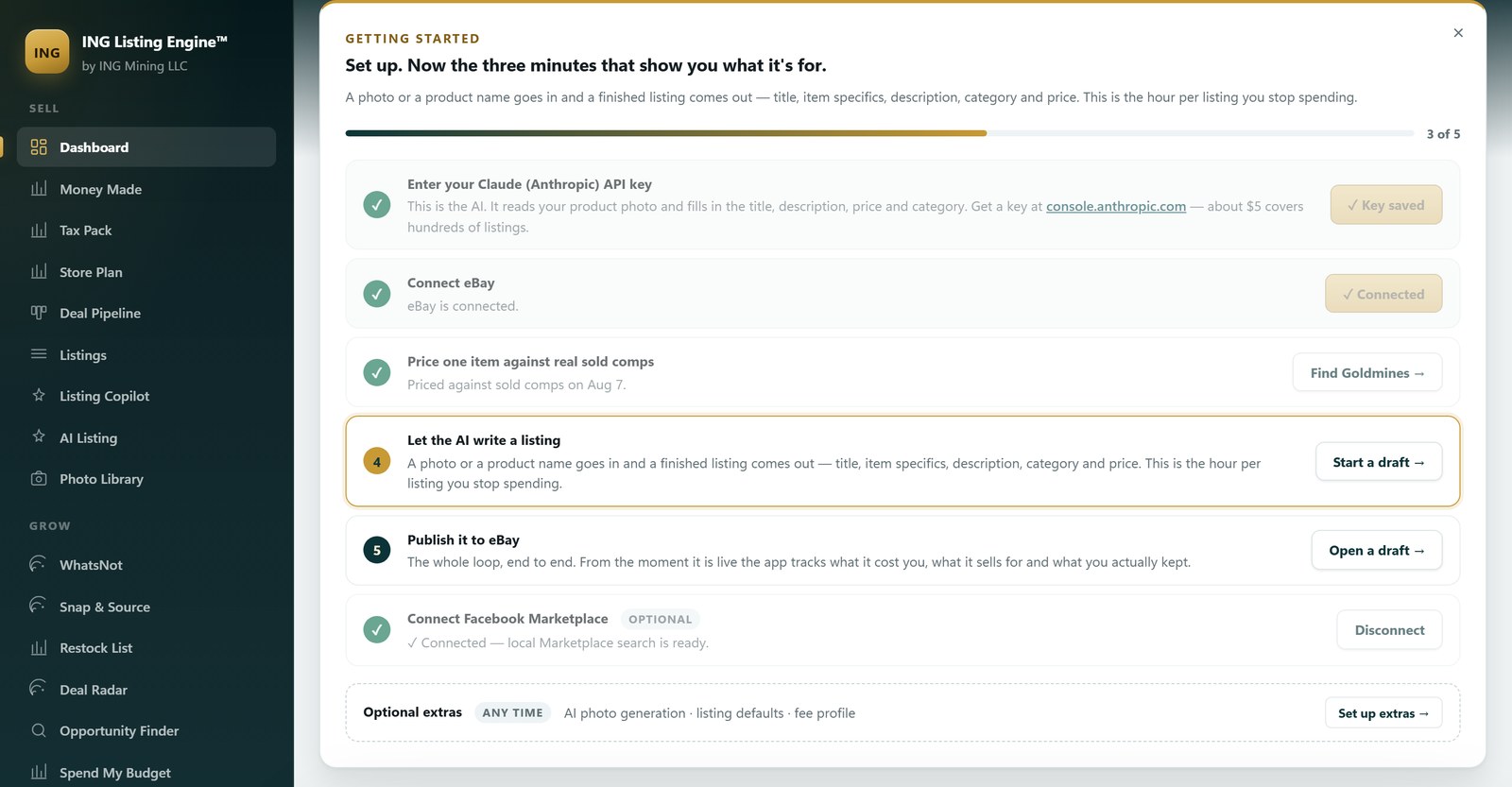
ING Listing Engine runs on your own computer, not on our servers. You install it, connect it to your eBay account and to Claude, and it opens in your browser at localhost:9332. Nothing about your listings, photos or logins passes through us. This page walks the whole thing end to end: the two things you must set up, the two that are optional, your first listing, and the parts that will trip you up.
Time to first listing: about 10 minutes. Most of that is the two logins. The app is free and in open beta — every feature is unlocked.
What it actually does
The whole product is one loop, and it helps to know the shape of it before you start clicking:
- Find something worth buying — search eBay itself for listings priced below what that thing actually sells for, or search local classifieds near you.
- Price it against real sold data — not asking prices. Every number in the app comes from a database of 864,000 completed eBay sales — published with its method and aggregate tables — and profit is calculated after fees and shipping, so the figure you see is what would land in your account.
- Write the listing with AI — hand it a photo or a product name and it returns a full draft: an 80-character title, category, item specifics, an HTML description and a price. The longer version of how that works is in our guide to AI eBay listing software.
- Publish to eBay — you review it first. Nothing goes live on its own.
You can use any part of that on its own. Plenty of people only ever use the AI listing writer.
Step 1 — Install it
Download the installer from the home page and run it. It is a standard Windows installer, roughly 51 MB. Windows may show a SmartScreen warning because the installer is not yet code-signed — choose More info → Run anyway.
When it starts, your browser opens at localhost:9332. That address is the app. It is running locally, so it works with no internet only for the parts that need no internet — the eBay and AI features obviously need a connection.
Step 2 — Your Claude API key (required)
This is the one that confuses people most, so here it is plainly: the AI is not included, and it is not a subscription to us. You bring your own key from Anthropic, and you pay Anthropic directly for what you use. We never see it — the key is stored on your machine.
Getting one takes about two minutes:
- Go to console.anthropic.com and sign up.
- Add a small amount of credit. $5 is a sensible first top-up — on the order of dozens of listings, not hundreds, and the FAQ works out why from the published rates — this is not a monthly fee, it is metered usage, and unused credit stays yours.
- Create an API key and copy it. It starts with
sk-ant-. - In the app: Settings → Claude API key, paste, save.
Why bring your own key? Because it is cheaper and more honest than the alternative. If we resold AI access we would have to charge a monthly subscription sized for heavy users and make money on light ones. Instead you pay cents per listing, directly, and you can see exactly what you spent in Anthropic’s own console.
What it costs in practice
A single photo-to-listing generation is one call to Claude Fable 5, which Anthropic prices at $10 per million input tokens and $50 per million output. Rewriting a whole account of 90 listings for SEO — titles, descriptions and item specifics — is one call per listing, so 90 listings is 90 calls. We have not measured a per-listing average across a real category spread, so we are not going to print one: what we can say is that $5 of output is 100,000 tokens, and a finished listing with twenty-plus item specifics and a spec table is not a few hundred tokens. Plan on dozens of listings per $5 rather than hundreds, then read your own number in Anthropic’s console after ten items — it is exact and it accounts for your photos and your categories, which no estimate of ours can. The FAQ works the whole thing out, including the line inside the app that still says otherwise. If the credit ever runs out, the app tells you plainly rather than failing silently.
Step 3 — Connect eBay (required to publish)
Click Connect eBay on the dashboard. Your browser opens eBay’s own sign-in page, you log in there, and eBay hands the app a token. You never type your eBay password into this app — it goes into eBay’s page, exactly as it would if you were signing in normally.
Once connected, the app can read your live listings, import them, and publish new ones. If you only want to browse and price things, you can skip this — the eBay Scanner works with no login at all. What the import actually pulls down, and where it is stored, is spelled out on the connected store page.
Business policies
eBay requires every listing to publish under a shipping, payment and return policy. If you have those set up in eBay Seller Hub, the app will find them; pick one of each in Settings → eBay Seller Policies. If a publish ever fails with “eBay Seller Policies not configured”, that is where to fix it.
Step 4 — The optional connections
This doesn’t block anything. It works the same way the eBay step does: the app opens a real browser window, you log into your own account there, and it saves the session so it does not have to ask again.
- Terapeak — no longer offered. eBay’s sign-in for the research session started landing on a bot check that no amount of reconnecting gets past, and a failed Terapeak lookup already took zero weight in the price blend — prices have been coming from the app’s own sold-comp data all along. The 6 August build removed the Connect buttons rather than keep a step that could only fail; if your copy still shows one, updating fixes it. Where Terapeak’s own data runs out is still the honest account of that trade.
- Facebook Marketplace — lets the app search local Marketplace supply by zip code and radius. One page load per search, only when you press Search. It never posts, messages, or acts as you.
Craigslist needs no login at all.
Step 5 — Your first listing
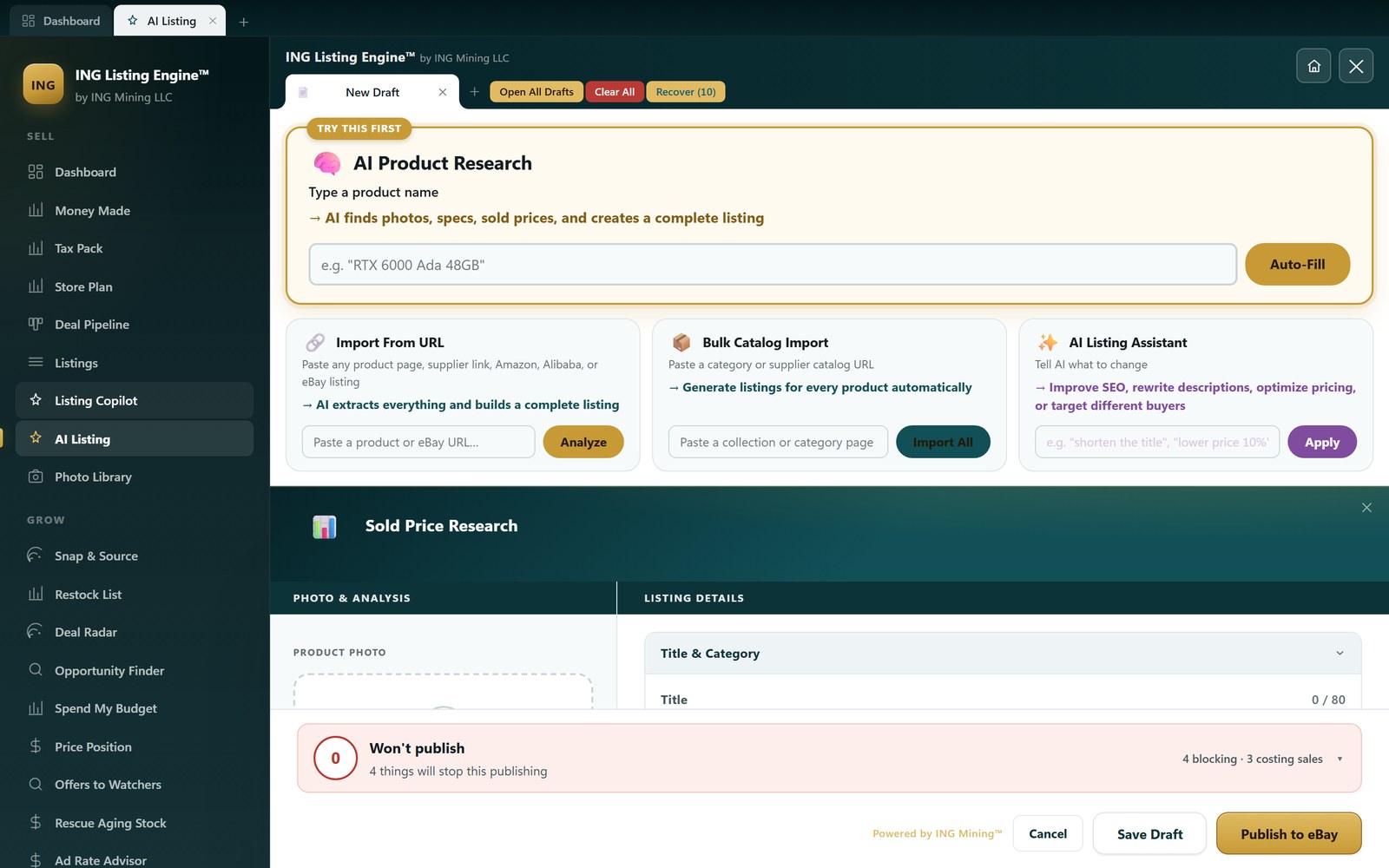
Open AI Listing in the sidebar. You have three ways in, and they all end in the same editable draft:
- Drop a photo. The AI reads the item out of the picture — brand, model, visible condition — and fills the listing around it. What it can and cannot get from one picture is covered in building an eBay listing from a photo.
- Type a product name. Useful when you know exactly what you have — the AI Quick-Fill route.
- Paste a URL. From a supplier page or another marketplace.
What comes back is a complete draft: title, category, item specifics, description and a suggested price with the sold comps it was based on. Every field is editable, and nothing publishes until you press publish. Read the title especially — the AI is good at titles and occasionally confident about a model number it cannot actually see.
Step 6 — Finding things worth buying
Three tools, three different questions:
eBay Scanner
Searches eBay itself for listings priced below what the same thing actually sells for — underpriced Buy It Nows and auctions nobody has bid on. Nationwide, no login, nothing to set up. Every result is priced against real sold data, and the buy price it shows is the delivered cost, item plus shipping, because that is what actually leaves your wallet.
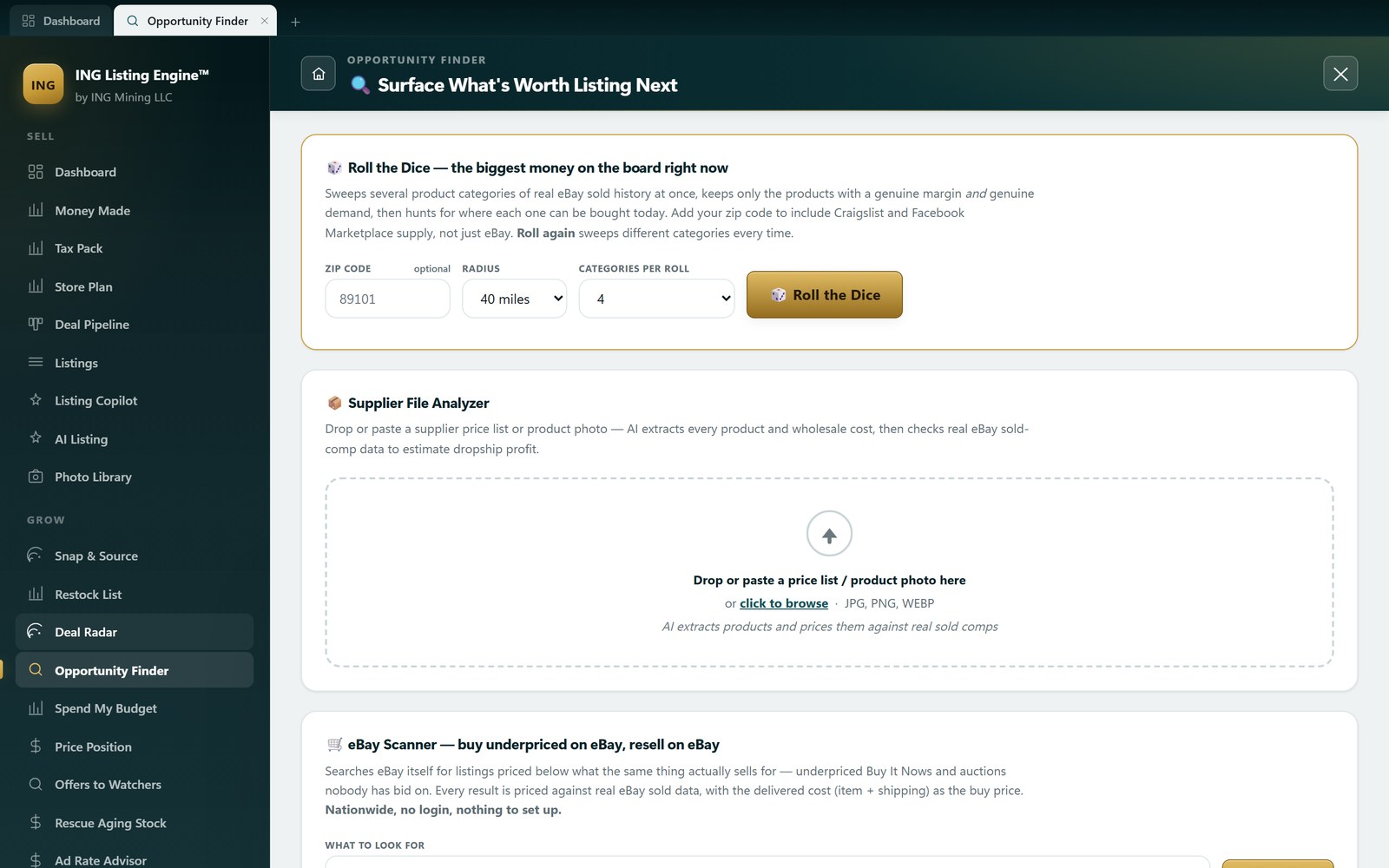
Opportunity Finder
Opportunity Finder is the same idea pointed at everything that is not eBay: Craigslist, Facebook Marketplace, free stuff, retail clearance feeds, and liquidation. Enter a zip code and a radius. Every local price is compared against real eBay sold prices, so the number beside each row is profit, not hope.
Auction Sniper
Live auctions ending soon, cross-referenced against recent sold prices for the same thing — the high-demand items priced well below where they normally end. Working out the number to actually bid is its own problem, and we wrote it up in how to set your maximum bid.
Step 7 — Listing Copilot
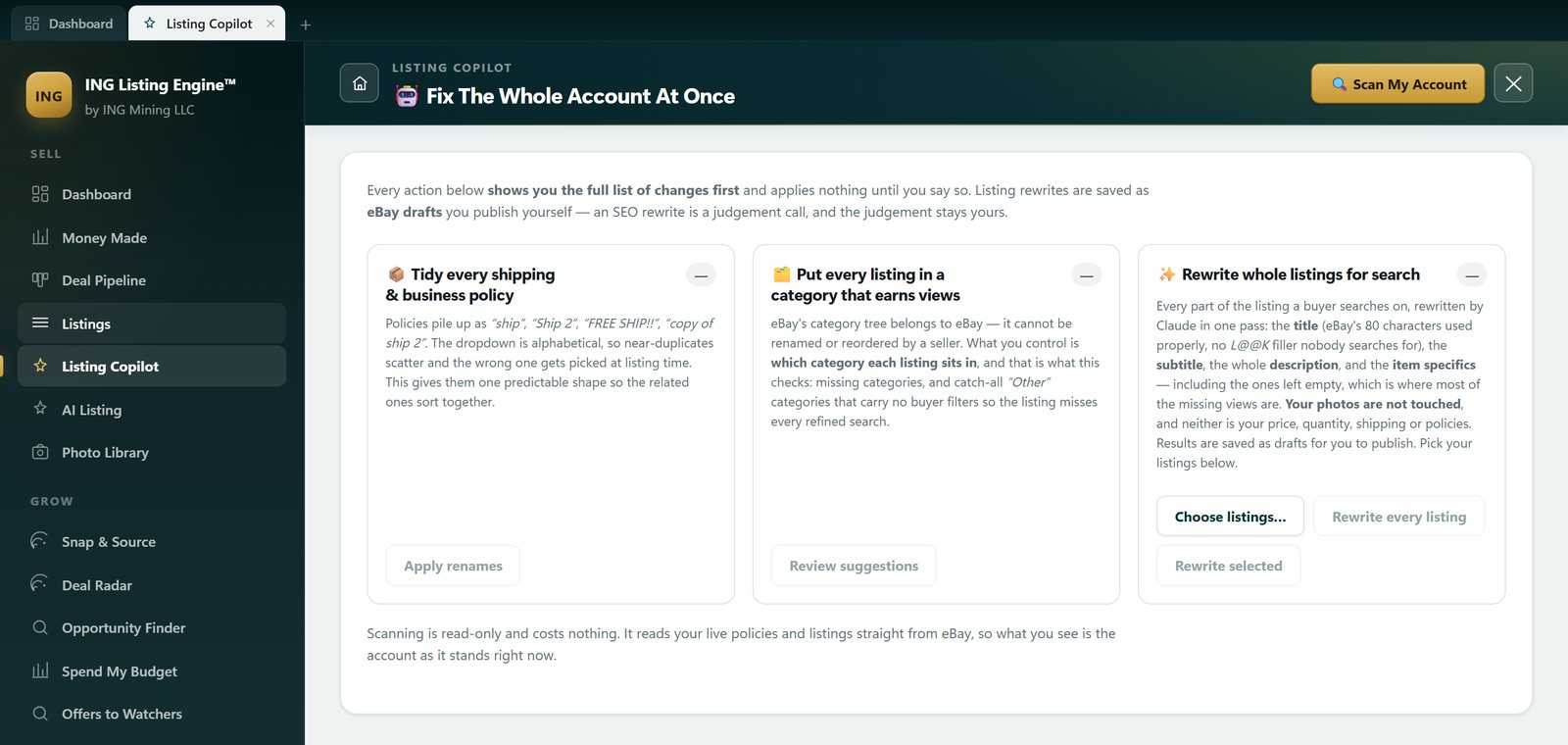
Once you have listings live, Listing Copilot works on all of them at once. Press Scan My Account and it reads every live listing and business policy and tells you what is wrong across all of them — titles over eBay’s 80-character limit, titles leaving half the keyword budget empty, filler like L@@K that nobody searches for, and business policies named “ship”, “Ship 2” and “copy of ship 2”.
Copilot rewrites the words; it does not touch prices — that is the repricing side of the app. From there you can rewrite every listing for search, or tick individual ones. Each rewrite gets a new title, a full HTML description and filled-in item specifics, and is saved as a draft you publish yourself. Your original photos are carried over untouched — the AI never sees them and cannot change them. The whole rule set that scan applies, including the one rule that gets a title wrong, is written out in eBay listing optimization.
Scan first, always. Scanning is read-only and costs nothing. It shows you the full list of proposed changes before anything is applied — a bulk edit across a live store should never be something that happens because you clicked the wrong button.
Things that will trip you up
- “Nothing happened when I clicked Connect”
- The login window can open behind the app. Alt+Tab or check the taskbar. It closes itself once you are signed in.
- A search returns nothing
- If you mistyped, the app now spots it and either searches the corrected spelling or offers it — eBay itself returns a flat zero for a typo with no hint at all. If the corrected search still finds nothing, that category genuinely has no supply right now.
- A publish fails on policies
- See Step 3. eBay will not accept a listing without a shipping, payment and return policy attached.
- Prices look stale
- The sold-comp database is refreshed in batches. Comps carry the date they were collected, and the app shows it — an old comp is still a real sale, but a fast-moving category deserves a fresher one.
What it does not do
Worth saying plainly, because tools in this category tend to overclaim:
- It does not buy anything for you. It finds and prices; you decide and purchase.
- It does not publish without you. Every listing is reviewed before it goes live.
- It does not guess at condition. If the photo does not show it, the draft says so rather than inventing a grade.
- It is Windows-only today.
- Sold comps are historical. A price that held last month is evidence, not a promise.
Features land continuously, so if a screen here does not match what you are looking at, the dated changelog is the place to check.
Where your data lives
On your machine. Your Claude key, your eBay tokens, your saved browser sessions and your listing database all sit in a folder under your own user profile, and drafts save to Desktop\eBayListing. We do not host your listings and we cannot see your account. The trade-off is the honest one: because it runs locally, it runs on one computer at a time.
Common questions
Do I need a subscription to use ING Listing Engine?
No. The app is free, in open beta, with every feature unlocked, and there is no card to enter. The one thing you do pay for is the AI, and you pay Anthropic for it directly with your own Claude API key — a few cents a listing, metered, with the unused credit staying yours. We never bill you and we never see the key.
Does it run on a Mac?
No. It is a Windows desktop app today — Windows 10 or 11 — and that is a real limitation rather than a roadmap item we are being coy about. There is no Mac build, no web version and no phone app.
Do I need an eBay account to try it?
Not to look. The eBay Scanner, sold-comp lookups and the AI drafting all work with no eBay login at all, so you can install it and see what it prices things at before deciding. You need the connection only to import your live listings or to publish.
Does ING Listing Engine publish listings automatically?
No, and this is deliberate. Every draft is reviewed by you before it goes live, and Listing Copilot’s rewrites are saved as eBay drafts rather than applied to the live listing. Your original title and description are kept, so a rewrite you dislike can be thrown away without having cost you anything.
Download ING Listing Engine — free
Filed under Inside the App · Tagged Automation, Photos & vision AI · Browse all guides by topic